 Written by
 If you’re just starting as a creator, one of the first things you’ll notice is this:
Good design matters. A lot.
It doesn’t matter if you’re posting on Instagram, starting a YouTube channel, building a blog, creating digital products, or trying to grow a personal brand—people notice visuals first.
Before they read your caption…
Before they click your link…
Before they trust your work…
They see your design.
And here’s the good news:
You do not need to be a professional designer to make things look good.
You also don’t need expensive software to get started.
Many beginner creators believe they need tools like Photoshop or Illustrator from the start. But honestly? That can be overwhelming, expensive, and unnecessary when you’re still in the learning process.
What you really need is this:
- Free tools
- Tools that are easy to learn
- Tools that help you create social posts, thumbnails, logos, PDFs, presentations, and simple brand visuals
- Tools that don’t make you feel like you need a design degree
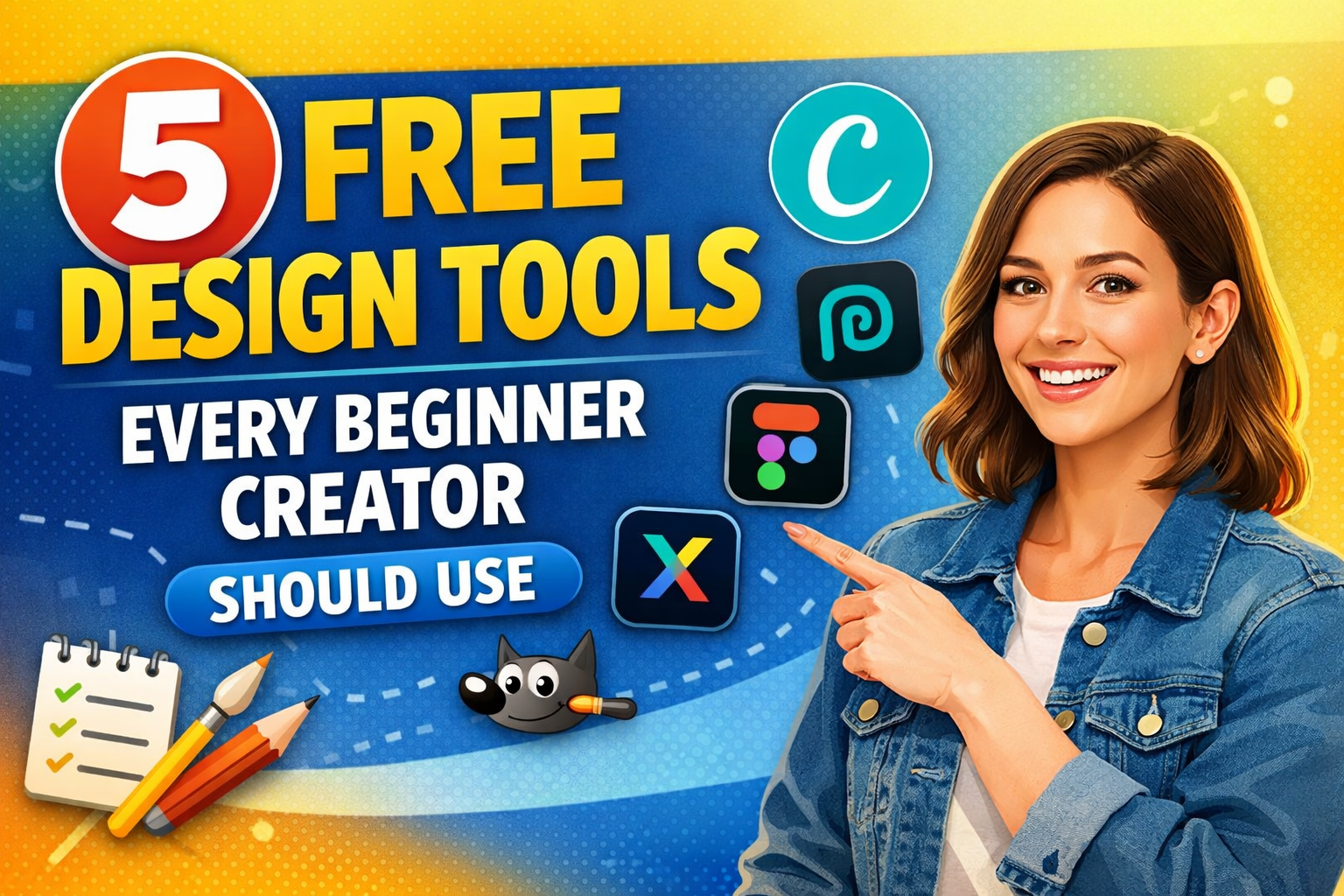
In this guide, I’ll walk you through 5 free design tools every beginner creator should use, why they matter, what they’re best for, and how to use them even if you’ve never designed anything before.
If you’re a beginner creator trying to look more professional without spending money, this guide is for you.
Why Free Design Tools Matter for Beginner Creators
Let’s be real.
When you’re new, you’re already juggling a lot:
- Learning content creation
- Trying to grow an audience
- Figuring out what to post
- Staying consistent
- Learning editing
- Managing time
- Maybe doing all of this on a small budget
So paying for expensive design tools too early can be a mistake.
Free design tools give you room to learn without pressure.
They help you:
- Test ideas quickly
- Build your visual style
- Make content look clean
- Create faster
- Save money
- Stay consistent
Think of it like this:
If you’re learning how to cook, you don’t buy a restaurant kitchen on day one.
You start with what works.
You learn the basics.
Then you upgrade later if you need to.
That’s exactly how beginner creators should think about design tools.
1. Canva – The Best All-in-One Free Design Tool for Beginners
If there’s one tool almost every beginner creator should start with, it’s Canva.
And honestly?
There’s a reason so many people recommend it.
Why Canva is great for beginners
Canva is simple, visual, and beginner-friendly.
You don’t need to know layers, masking, or advanced editing terms. You just open a template, drag things around, change text, swap colours, and you’re already creating something that looks good.
What you can make with Canva
With the free version, you can create:
- Instagram posts
- Reels covers
- YouTube thumbnails
- Pinterest pins
- Blog graphics
- eBook covers
- Presentation slides
- Flyers
- Posters
- Simple logos
- Business cards
- Lead magnets / PDFs
Simple illustration
Imagine this:
You want to post a quote on Instagram.
Instead of opening a complex design app, Canva lets you:
- Search “Instagram quote post”
- Pick a template
- Replace the text
- Change the colours
- Download it
That’s it.
In 10 minutes, you have a clean post.
Best features in Canva’s free version
- Thousands of free templates
- Drag-and-drop editor
- Free fonts
- Free stock photos and icons
- Brand color options (manual, but easy)
- Resize by creating a new file size
- Team sharing (basic)
- Great mobile app
What beginners should use Canva for first
If you’re new, start with:
- YouTube thumbnails
- Instagram posts
- Pinterest pins
- Simple PDF guides
- eBook covers
- Content carousels
These are the areas where Canva shines for creators.
Beginner tip
Don’t use too many elements at once.
A common beginner mistake is this:
- Too many fonts
- Too many colors
- Too many stickers
- Too much text
Keep it simple.
A good rule:
- 1–2 fonts
- 2–3 colors
- One main message
- Lots of empty space
Best for
Creators who want one free tool that does almost everything.
2. Photopea – The Best Free Alternative to Photoshop
If Canva feels too simple sometimes, and you want more control, then Photopea is a fantastic next step.
A lot of beginner creators don’t know about it, but it’s one of the best free tools online.
What is Photopea?
Photopea is a browser-based design and photo editing tool that looks and feels a lot like Photoshop.
The big difference?
It’s free, and you don’t need to install anything.
You open it in your browser and start editing.
Why beginners should care about Photopea
At some point, many creators outgrow basic templates.
You may want to:
- Remove backgrounds
- Make cleaner thumbnails
- Edit layers
- Add effects
- Create better text overlays
- Open PSD files
- Make mockups
- Do more detailed image work
That’s where Photopea becomes powerful.
What you can create in Photopea
- YouTube thumbnails
- Transparent PNGs
- Product mockups
- Social media banners
- Channel art
- Simple logos
- Edited photos
- Thumbnail cutouts
- Website graphics
Simple illustration
Let’s say you want a YouTube thumbnail with:
- Your face cut out
- A bright background
- Bold text
- A glowing effect
- An arrow pointing to something
Canva can do some of this.
But Photopea gives you more control over:
- Background removal
- Layer effects
- Shadows
- Stroke outlines
- Smart object edits
- Better custom compositions
Why it’s useful for serious beginners
If you want to become a creator who stands out, eventually you’ll need better custom visuals.
Templates are nice, but custom design often gets more clicks.
Photopea helps you move from:
“I use templates” → “I can actually design and edit things myself.”
That’s a huge step.
What beginners should learn first in Photopea
Don’t try to learn everything in one day.
Start with just these basics:
- Layers
- Text tool
- Move tool
- Remove background
- Add stroke to text
- Export as PNG/JPG
- Add shadows
- Resize canvas
That’s enough to create great thumbnails and graphics.
Beginner warning
Photopea can feel harder than Canva at first.
That’s normal.
But if you give it a few practice sessions, it becomes much easier.
Best for
Beginner creators who want more creative control without paying for Photoshop.
3. Figma – The Best Free Tool for Clean Layouts and Brand Design
A lot of people think Figma is only for app designers or website designers.
That’s not true.
Figma is amazing for beginner creators too, especially if you want your designs to look clean, modern, and organized.
What is Figma?
Figma is a free design tool used in the browser (and desktop app) that helps you create layouts, graphics, wireframes, brand assets, and visual systems.
That may sound technical.
In simple words:
Figma helps you design with structure.
Why beginner creators should use Figma
If Canva is quick and fun, Figma is clean and organized.
It teaches you something very important:
How to think like a designer.
Not just decorating things.
But arranging things.
That means learning:
- Spacing
- Alignment
- Visual balance
- Consistency
- Simple branding
- Better layout habits
What you can create in Figma
- Content templates
- Brand boards
- Mood boards
- Website mockups
- Landing page wireframes
- Social media templates
- Thumbnail layouts
- Digital product previews
- eBook page layouts
- Presentation slides
- Content systems for teams
Simple illustration
Imagine you’re building a small brand for your content.
You want:
- One logo
- 2 main colors
- 2 fonts
- 3 post templates
- A YouTube thumbnail style
- A lead magnet cover
In Canva, you can do this.
But in Figma, you can create one organized design system where everything sits together neatly.
That means your content starts looking like it belongs to the same creator.
That’s how brands look professional.
Why this matters for creators
When your visuals are consistent, people remember you faster.
For example:
- Same font style
- Same color style
- Same thumbnail feel
- Same layout style
Even before they read your name, they start to recognize your work.
That’s powerful.
Best beginner use for Figma
Start with:
- A simple brand board
- A YouTube thumbnail layout
- An Instagram carousel template
- A landing page mockup
- A lead magnet layout plan
What Figma teaches you that other tools don’t
Figma teaches discipline.
Instead of randomly dragging things around, it helps you ask:
- Is this aligned?
- Is the spacing even?
- Is the text readable?
- Does this feel balanced?
- Does this match the brand?
Those questions make your design better.
Best for
Creators who want clean, professional, modern-looking layouts and stronger branding.
4. Adobe Express – The Easy Free Tool for Fast Social Content
Some beginner creators want something simple like Canva—but with a slightly different feel, especially if they want quick social media content.
That’s where Adobe Express comes in.
What is Adobe Express?
Adobe Express is Adobe’s beginner-friendly design tool.
Think of it like:
Adobe made a simpler tool for creators who don’t want the full complexity of Photoshop.
And for many beginners, that’s a good thing.
What you can create with Adobe Express
- Social media posts
- Stories
- Reels covers
- Posters
- Flyers
- Simple videos
- Thumbnails
- Promo graphics
- Quick branded visuals
- Text animations
Why it’s useful for beginners
Some creators like Canva better.
Others like Adobe Express better.
Why?
Because Adobe Express feels a bit more “content-focused” in some areas, especially for:
- Fast marketing graphics
- Social posts
- Promotional content
- Quick branded edits
- Simple motion content
Simple illustration
Let’s say you’re launching:
- A free eBook
- A webinar
- A YouTube video
- A new service
- A newsletter signup
You need quick promo visuals like:
- “New video out now”
- “Download my free guide”
- “Join the webinar”
- “New post live”
Adobe Express makes these fast.
Where Adobe Express shines
- Easy templates
- Fast social graphics
- Quick background removal (depending on free limits/features at the time)
- Nice text effects
- Simple animation features
- Good for short-form promo visuals
Beginner tip
Use Adobe Express when you need speed.
Not every design needs to be perfect.
Sometimes you just need to get content out.
That matters a lot when you’re building consistency.
Best for
Creators who want fast, polished social content without overthinking every design.
5. GIMP – The Best Free Tool for Learning Real Graphic Design Skills
Now let’s talk about a tool that is a little more advanced—but still worth knowing:
GIMP.
GIMP has been around for a long time, and it’s one of the most powerful free design tools available.
What is GIMP?
GIMP is a free, open-source image editor.
It’s often seen as a free alternative to Photoshop.
It’s not as smooth for beginners as Canva or Adobe Express.
But it is powerful.
Why should beginner creators still care about GIMP?
Because if you want to build real long-term design skills without paying for expensive software, GIMP can help.
It’s especially useful if you want to learn:
- Image editing
- Layer work
- Retouching
- Advanced cutouts
- Graphic manipulation
- Basic design composition
- Custom artwork workflows
What you can create in GIMP
- Thumbnail graphics
- Custom banners
- Edited product images
- Blog images
- Transparent graphics
- Promotional graphics
- Simple photo edits
- Basic posters
- Content overlays
Simple illustration
Let’s say you run a blog or YouTube channel.
You want a custom featured image that includes:
- A photo
- A textured background
- A strong title
- Light image cleanup
- Color adjustment
- A more “designed” feel than a basic template
GIMP can do that.
When to use GIMP vs Photopea
This is simple:
- Use Photopea if you want easy browser editing
- Use GIMP if you want installed software and deeper learning
For many beginners, Photopea is easier at first.
But GIMP is still worth learning if you want a real free software option on your computer.
Beginner warning
GIMP is not the easiest tool on this list.
So don’t start here unless you enjoy learning more technical tools.
But if you stay with it, it can save you money long term.
Best for
Beginner creators who want to build deeper graphic design skills for free.
Which Free Design Tool Should You Start With?
If you’re feeling overwhelmed, here’s the simple answer:
Start with Canva first.
If you are completely new, Canva gives you the fastest win.
Then grow like this:
- Start with Canva → for easy posts, thumbnails, PDFs, and quick content
- Add Photopea → when you want more control for custom graphics
- Use Figma → when you want clean branding and better layout skills
- Try Adobe Express → when you want fast social content and promo graphics
- Learn GIMP later → if you want deeper design skills without paying
Think of it like levels in a game.
You don’t need all 5 on day one.
You just need the right one for where you are now.
How Beginner Creators Can Make Better Designs (Even With Free Tools)
Tools help—but tools alone won’t fix bad design habits.
Here are a few simple rules that instantly make your content look better:
1. Use fewer fonts
Too many fonts make designs look messy.
Best rule:
Use 1 main font, maybe 1 secondary font.
2. Keep your colors simple
You don’t need rainbow branding.
Use:
- 1 main color
- 1 support color
- Black/white/gray
That’s enough.
3. Make text easy to read
If people struggle to read it, they scroll past it.
Use:
- Big text
- Strong contrast
- Short headlines
4. Leave empty space
Beginners often fill every corner.
Don’t.
Empty space makes design breathe.
It makes things look cleaner and more professional.
5. Stay consistent
Your designs should feel like they come from the same person.
That means:
- Same colors
- Same style
- Same font choices
- Same layout habits
Consistency builds trust.
A Simple Beginner Creator Design Workflow
Here’s a very easy workflow you can use right away:
For social media creators
- Use Canva for posts and carousels
- Use Adobe Express for fast promo content
- Use Photopea for custom thumbnails
For YouTubers
- Use Canva for basic thumbnails
- Use Photopea for advanced thumbnails
- Use Figma to plan thumbnail styles and branding
For bloggers
- Use Canva for featured images and Pinterest pins
- Use Figma for brand boards and lead magnet layout
- Use GIMP or Photopea for custom blog visuals
For digital product creators
- Use Canva for eBook covers and PDFs
- Use Figma for clean layouts and product systems
- Use Photopea for mockups and image edits
Final Thoughts: You Don’t Need Expensive Tools to Look Professional
A lot of beginner creators delay starting because they think they need more.
More money.
More software.
More experience.
More design knowledge.
But the truth is:
You can create great-looking content with free tools.
Not perfect content.
Not expert-level design.
But more than enough to start building.
And starting matters more than over-preparing.
If I had to keep this simple, I’d say:
- Use Canva to start fast
- Use Photopea to grow your design confidence
- Use Figma to build a clean visual identity
- Use Adobe Express when you need speed
- Use GIMP if you want to learn deeper skills for free
You do not need all of them at once.
Pick one.
Use it this week.
Create something simple.
Post it.
Improve as you go.
That’s how real creators grow.
Not by waiting.
But by making.
Quick Recap: 5 Free Design Tools Every Beginner Creator Should Use
Here’s the short version:
1. Canva
Best overall free design tool for beginners
Perfect for social media, thumbnails, PDFs, blog graphics, and digital products.
2. Photopea
Best free Photoshop alternative
Great for custom thumbnails, image editing, and layered design work.
3. Figma
Best for clean layouts and branding
Helps creators build consistency, better structure, and modern visuals.
4. Adobe Express
Best for fast social content
Great for quick promotional posts, simple animations, and easy branded visuals.
5. GIMP
Best for learning deeper design skills for free
A strong option for creators who want long-term image editing power.
Conclusion
If you’re a beginner creator, don’t let design stop you.
You don’t need expensive tools.
You don’t need to be perfect.
You don’t need to “feel ready.”
You just need a tool that helps you create today.
Start with one of these free design tools.
Learn by doing.
Keep your designs simple.
And focus on being clear, not fancy.
Because in the end, the best design tool is the one that helps you publish consistently.
And that’s what helps creators grow.